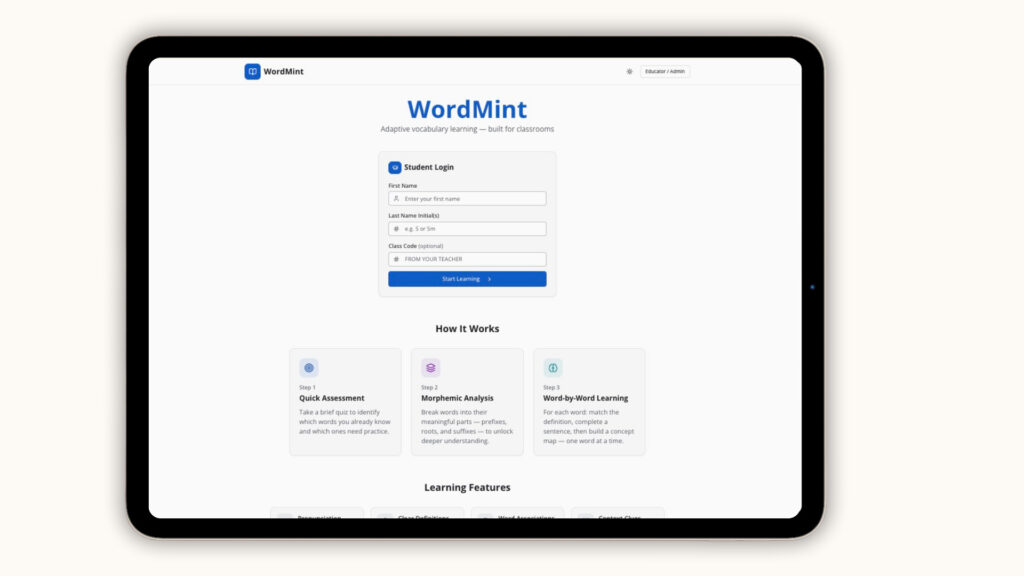
WordMint is vocabulary learning software that begins with a diagnostic. Students log in with a first name, last initial, and class code. No accounts. No personal data.
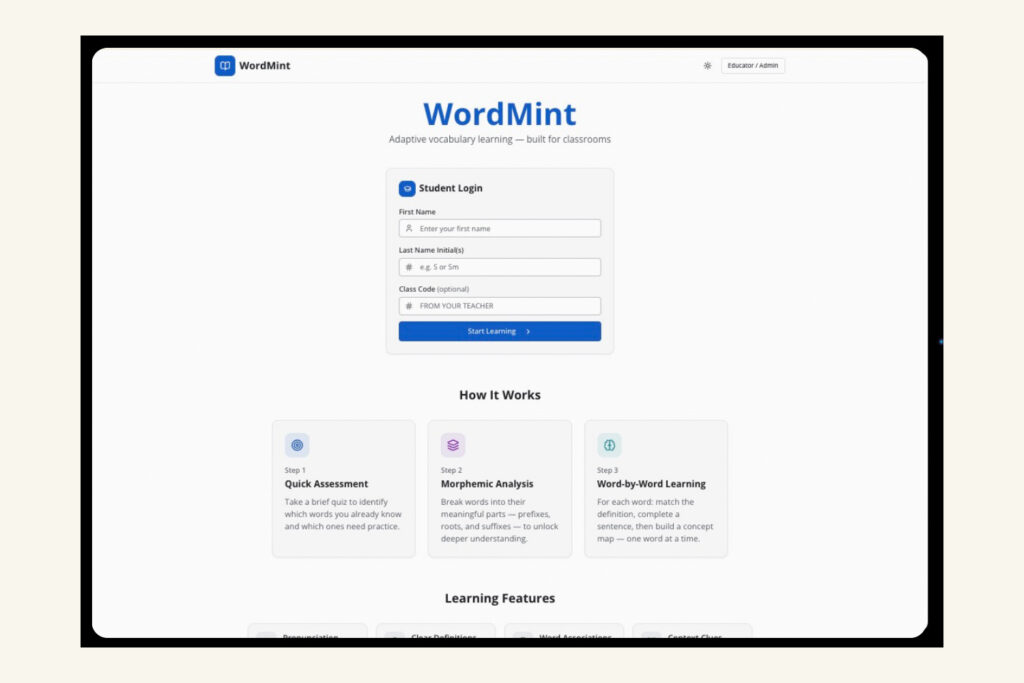
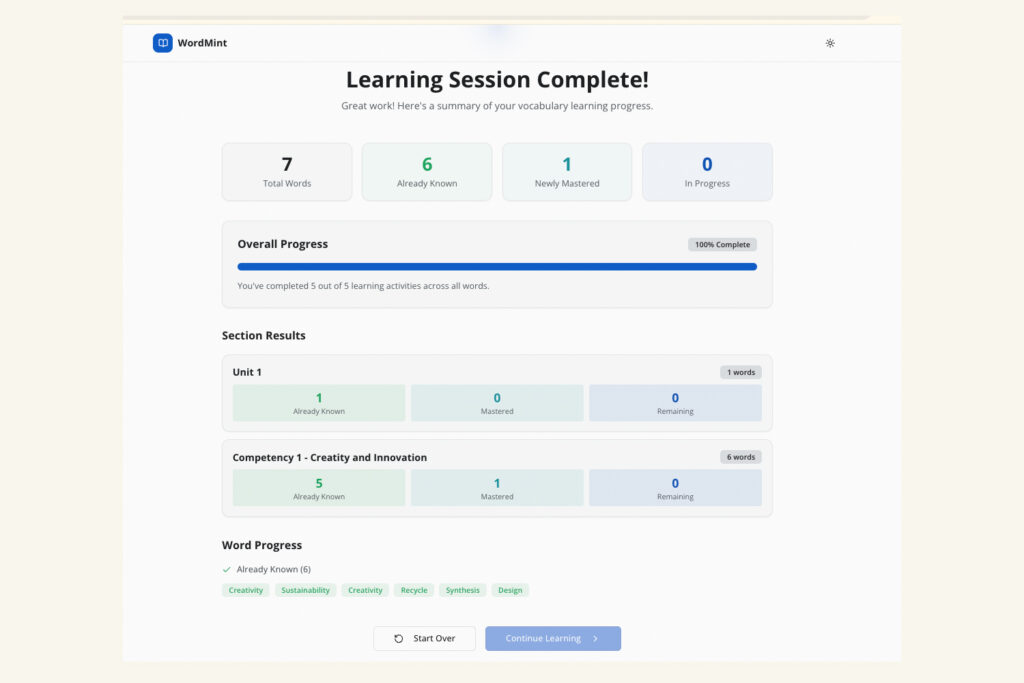
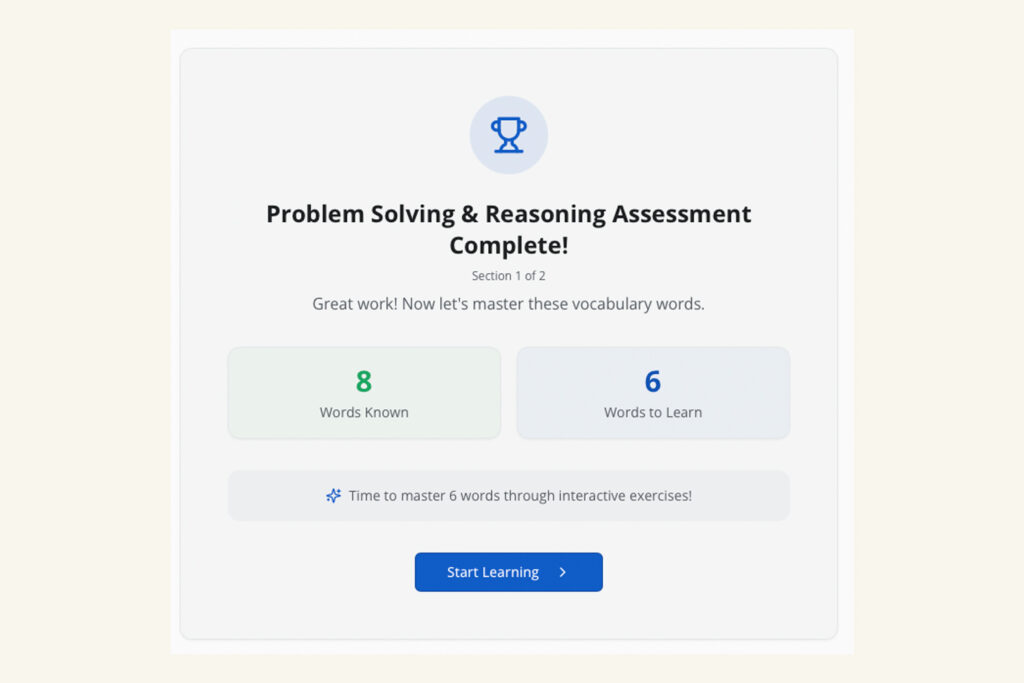
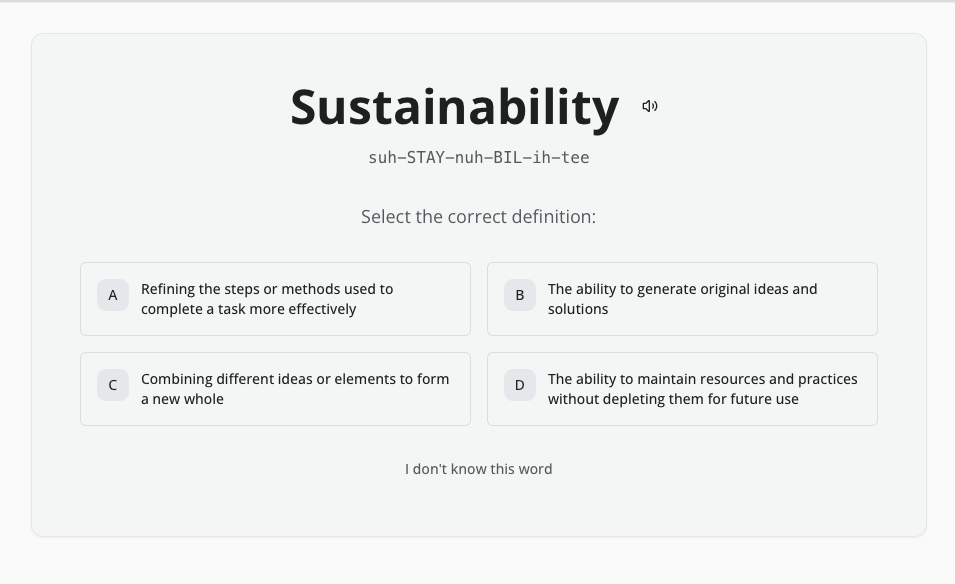
On their first session, students take a brief assessment. WordMint identifies which vocabulary words they already know. The platform removes those words from their practice. Students work only on words they don’t yet know.
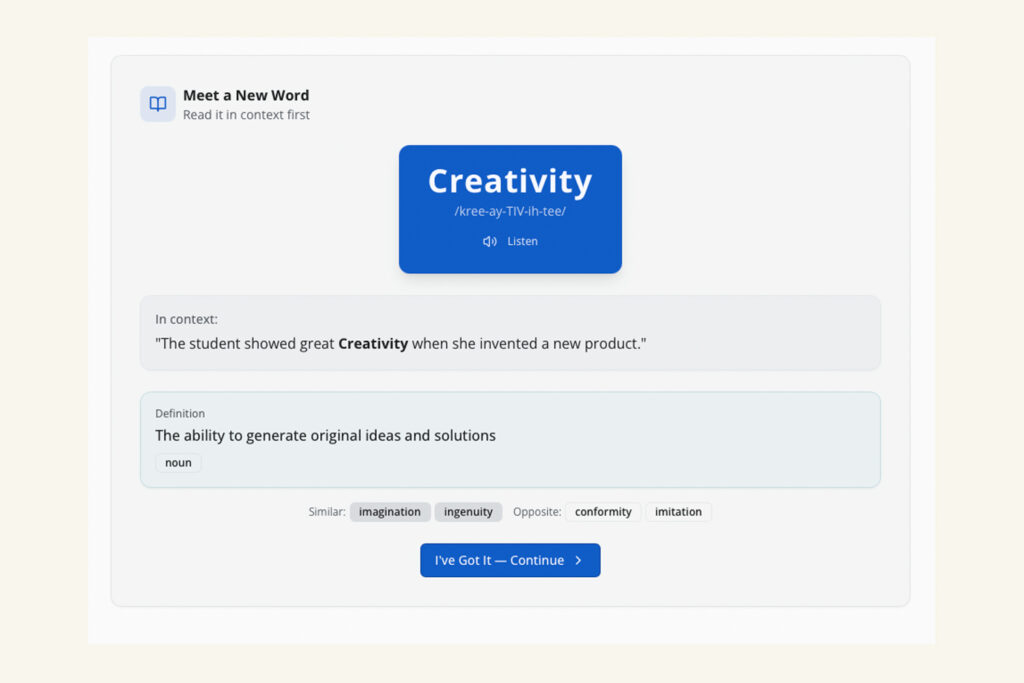
What comes next is a five-step sequence. Students see each new word in a real sentence. They break it into prefix, root, and suffix. They match the correct definition against options that actually make sense. They sort synonyms and antonyms. Finally, they write the word into a fill-in-the-blank sentence.
You manage everything from your dashboard. Upload your word lists or choose from ready-made vocabulary sets. Organize words by unit and difficulty level. Assign sections to specific classes. View real-time progress as students move through each word.
Three ways to build your vocabulary lists:
Option 1: Create Your Own
Type words directly into your dashboard. Add definitions, example sentences, fill-in-the-blank prompts, and morpheme breakdowns. You choose exactly which words your students learn and in what order. Total control.
Option 2: Use Ready-Made Vocabulary Sets
Browse curated vocabulary sets from CenterStaged.io. Collections organized by topic, reading level, and subject area sit ready to use. Upload a complete set to your dashboard in seconds. These packages eliminate your planning time while keeping instruction strong.
Option 3: Order Custom Vocabulary Content
Need vocabulary matched to your exact curriculum? Order a custom set built by our content team. You receive a file ready to upload.
HOW WORDMINT WORKS
WordMint follows five steps.
- Works with any subject or standard
- Build custom word lists in the dashboard
- Full educator controls & progress data
- Every WordMint purchase includes a CODE FOR FREE VOCABULARY SET to get you started.
Step 1 — Get your license key
- On the Educator/Admin sign-in page, click Get a License
- Complete the purchase on Gumroad
- Your license key appears on the receipt and is emailed to you
- Save that email — you’ll need the key in the next step and any time you switch devices
Step 2 — Activate your license
- On the Educator/Admin sign-in page, paste your license key into the License Key box
- Click Activate
- If you see an error, check the key against your Gumroad receipt — it must match exactly
Step 3 — Create your account
- Click Create Account
- Enter your name, email, and a password
- Returning educators enter their email and password and click Sign In
Step 4 — Create a classroom
Students use this code to sign in
In the dashboard, click to create a new classroom
Give it a name you’ll recognize (e.g., “Period 3 ELA”)
Each classroom gets its own class code — write it down
Step 5 — Add your vocabulary
Open your classroom and click the Vocabulary tab. Choose one of three methods:
Option A: Enter words manually
- Click the Add Vocabulary Word form at the top of the tab
- Enter the word, definition, difficulty tier, a fill-in-the-blank sentence with answer choices, and optional word parts (prefix/root/suffix)
Option B: Build and upload a CSV
- In the Import Vocabulary & Sentences from CSV box, click Download Template
- Open the file in Excel or Google Sheets
- Add one row per word — keep the header row as-is
- Save the file as CSV
- Click Upload CSV and select your file
Option C: Upload a CenterStaged.io Topic Set
- Download a topic set from CenterStaged.io
- Save the CSV file
- Click Upload CSV and select it — no editing needed
After any upload, wait for the green confirmation message (e.g., “20 words + 20 sentences imported”).
Step 6 — Assign sections
- Click the Assign tab
- Check which sections each classroom should work on
- If no sections are checked, students see all words
Step 7 — Have students sign in
- Share your class code with students
- Students go to your WordMint site and enter their first name, last initial, and class code
- No accounts, emails, or passwords required — no personal student data is stored
Step 8 — Track progress
Click the Student Results tab to view each student’s words known, words practiced, and mastery progress
1. Sign in and open the Vocabulary tab
Go to the Educator/Admin dashboard, sign in, open the classroom you want the words in, and click the Vocabulary tab.
2. Upload it
In the “Import Vocabulary & Sentences from CSV” box, click Upload CSV, then choose your prepopulated file.
3. Check the confirmation
You’ll see a green message like “20 words + 20 sentences imported.” If any rows had a problem, you’ll get a short warning naming the exact row so you can fix just that one and re-upload if needed.
Good to know:
- You don’t need the “Download Template” step — that’s only for building a file from scratch. A prepopulated file is ready to upload as-is.
- Uploading adds words to the classroom; it doesn’t erase what’s already there. If you upload the same file twice, you may get duplicates.
- After importing, your new words appear in the Vocabulary list grouped by their Section, and you can assign sections to classes in the Assign tab.
Aligned to: Virginia Life Science SOL (LS.2–LS.11)
Supports: NGSS Middle School Life Science — MS-LS1, MS-LS2, and MS-LS4
122 unique Life Science terms across 9 sections, formatted for WordMint
Please read before purchasing: This is a content template for the WordMint app, not a standalone product. WordMint is a separate purchase, available at wordmint.centerstaged.io.
This is a vocabulary template for a middle school botany unit. It contains the key terms from the Gardening & Plant Bio worksheets, organized, defined, and grouped by topic, formatted as a CSV to upload into WordMint.
Contents — 9 sections, 122 unique terms
- Plant Parts & Cells
- Photosynthesis
- Soil, Compost & Nutrients
- Flowers & Pollination
- Plant Adaptations
- The Plant Life Cycle
- Gardening Practices
- Plant Responses
- Plant Classification
The file contains 128 total entries — 122 unique terms, with 6 that appear in more than one section because they are taught across multiple worksheets (for example, photosynthesis and dormancy). Each section corresponds to a worksheet in the unit. Each term includes a student-friendly definition written for middle school and aligned to Virginia Life Science standards (LS.2–LS.11).
Delivery & requirements
- Delivered as a CSV file, downloaded after purchase
- Requires the WordMint app, which is a separate purchase
- Formatted to match a botany worksheet unit; pair with the Gardening & Plant Biology worksheets (sold separately) for the full unit
- Upload the CSV to WordMint to use
1. Sign in and open the Vocabulary tab
Go to the Educator/Admin dashboard, sign in, open the classroom you want the words in, and click the Vocabulary tab.
2. Upload it
In the “Import Vocabulary & Sentences from CSV” box, click Upload CSV, then choose your prepopulated file.
3. Check the confirmation
You’ll see a green message like “20 words + 20 sentences imported.” If any rows had a problem, you’ll get a short warning naming the exact row so you can fix just that one and re-upload if needed.
Good to know:
- You don’t need the “Download Template” step — that’s only for building a file from scratch. A prepopulated file is ready to upload as-is.
- Uploading adds words to the classroom; it doesn’t erase what’s already there. If you upload the same file twice, you may get duplicates.
- After importing, your new words appear in the Vocabulary list grouped by their Section, and you can assign sections to classes in the Assign tab.
STEP 01
Diagnostic Assessment
Your students open WordMint and take a brief quiz. WordMint identifies which vocabulary words they already know. The platform removes those words from their practice session. Students focus only on words they need to learn.
STEP 02
Word in Context
Each new vocabulary word appears first in a real, meaningful sentence. Students read the word where it naturally belongs before they see a definition.

STEP 03
Morphemic Analysis
Students break the word into pieces: prefix, root, suffix. They match each piece to its meaning.

STEP 04
Definition & Fill-in
Students choose the correct definition from options that require real thinking. Then they write the word into a sentence. An optional hint appears if they get stuck.

STEP 05
Word Relationships
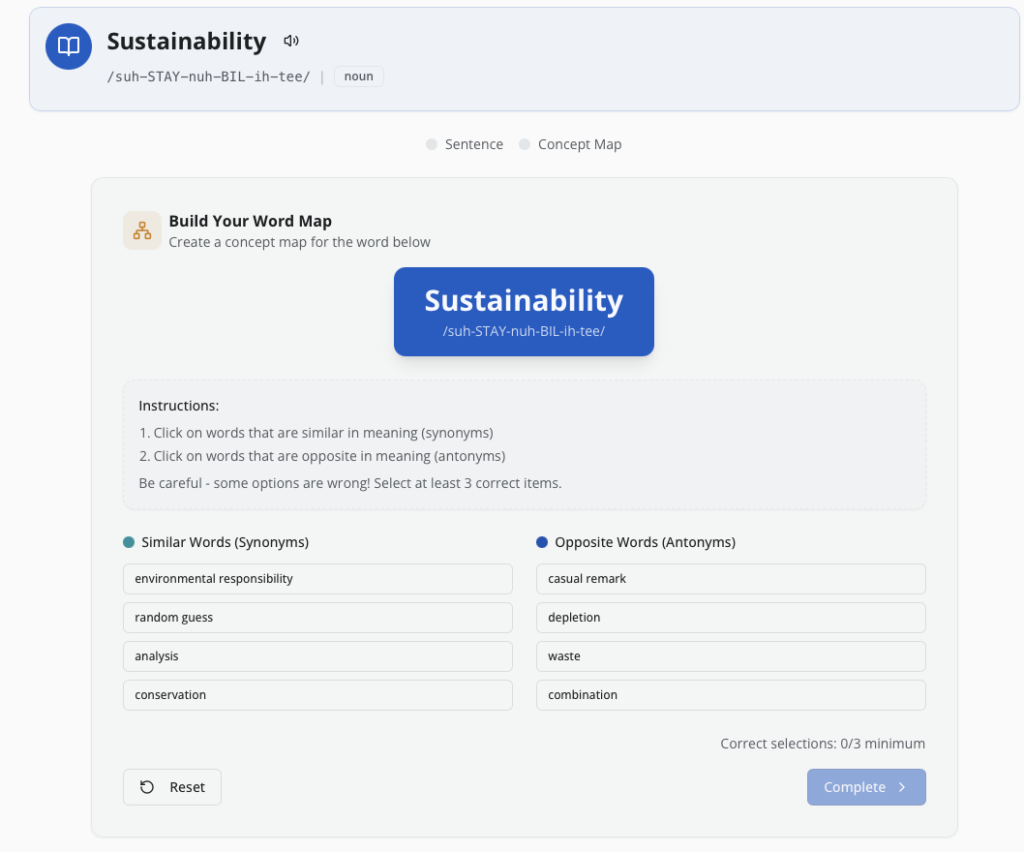
Given the vocabulary word, students identify which other words are synonyms (similar meaning) and which are antonyms (opposite meaning). The list includes distractor words that don’t fit either category. Students reach a minimum number of correct answers before advancing.
WHAT’S INSIDE
Every feature earns
its place.
Audio pronunciation + phonetic respelling
Learners hear each word and see a plain-English pronunciation guide before they are ever asked to use it lowering the barrier to engagement and building spoken confidence alongside written comprehension.
Concept mapping (synonyms and antonyms)
Learners sort true synonyms and antonyms from a mixed list that includes wrong options, and must reach a minimum number of correct selections before advancing. Knowing a word deeply means knowing what it isn’t.
Teacher-authored content
Educators build their own word lists directly in the dashboard or import a ready-made vocabulary pack. WordMint adapts to any subject, unit, reading level, or standard — not a fixed curriculum.
Contextual Fill-in-the-Blank with Constructed Distractors
Fill-in-the-blank items are built with distractors that require genuine comprehension rather than guessing. An on-demand hint provides scaffolding without interrupting independent practice.
Full word profiles
Every word includes a learner-friendly definition, part of speech, example sentence, and morpheme breakdown — prefix, root, and suffix with meanings. Multiple access points into a single word’s meaning, before learners are asked to use it independently.
Tiered and organized word lists
Words are organized by difficulty tier and unit, so intervention learners and advanced learners can work from the same platform at different levels of challenge — no separate setup required.